
Introduction
A 404 error—”Page Not Found”—is one of the most frustrating experiences a website visitor can encounter. For site owners and SEO professionals, these errors represent more than just a poor user experience; they can undermine your search engine rankings, waste your crawl budget, and damage your site’s credibility. Whether caused by deleted pages, broken internal links, or incorrect external links, 404 errors demand immediate attention. The good news? Fixing 404 errors is faster and easier than ever with the right approach and tools. In this guide, we’ll walk you through identifying, resolving, and preventing 404 errors to keep your website healthy and your rankings strong.
What Is a 404 Error and Why Does It Matter?

A 404 error is an HTTP status code that indicates a web server cannot find the requested page. When a user (or search engine bot) tries to access a URL that no longer exists or was entered incorrectly, the server responds with a 404 status code, displaying an error page. seo
While a single 404 error won’t tank your rankings, repeated 404 errors can have serious SEO consequences:
- Wasted Crawl Budget: Search engines allocate a specific crawl budget to each site. When Google encounters multiple 404 errors, it wastes resources crawling non-existent pages instead of discovering and indexing your valuable content. Don’t let bots waste time on error pages. Control exactly where they go with a custom file from our [Robots.txt Generator].
- Poor User Experience: Visitors who encounter 404 errors become frustrated and leave your site. This increases bounce rates, signaling to Google that your site may not be meeting user expectations.
- Lost Link Equity: If external websites link to a page on your site that now returns a 404, the link juice (SEO value) from those backlinks is lost.
- Reduced Site Authority: Frequent 404 errors suggest poor site maintenance, potentially lowering your site’s overall authority and trustworthiness in Google’s eyes.
According to search engine guidelines and SEO experts, while 404 errors don’t directly trigger manual penalties, their indirect impact on user experience and indexation can harm your organic visibility over time.
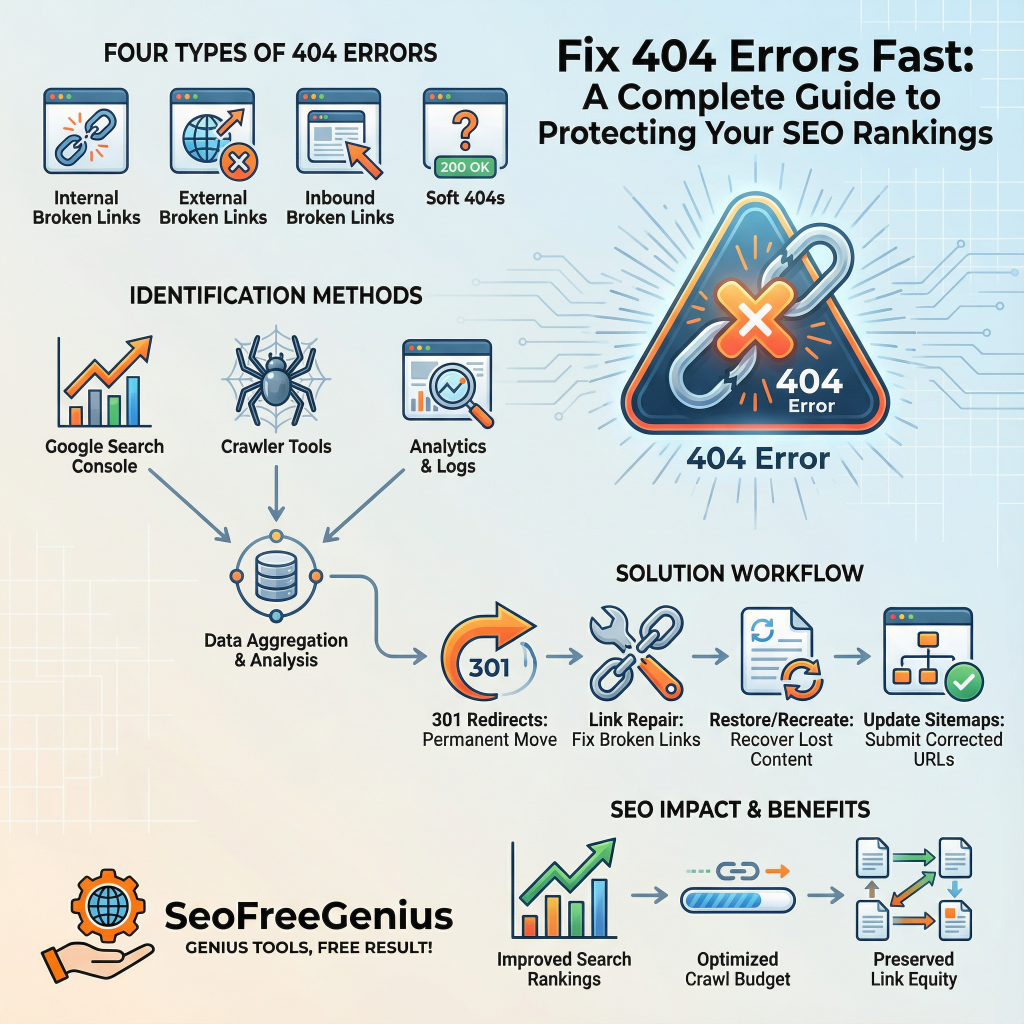
Types of 404 Errors to Watch For

Understanding the different sources of 404 errors helps you fix them more effectively.
Internal broken links are links within your own website’s pages, navigation menus, or content that point to non-existent URLs on your domain. kimberlyherrington
These occur when you:
- Delete or move a page without setting up redirects
- Update a URL slug without updating internal links
- Have broken links in your website’s navigation or sidebar
Fix: Use tools like the Broken Links Finder from SeoFreeGenius.com to scan your site and identify internal links that return 404 errors. Update these links with correct URLs or remove them entirely.
External broken links are links within your content that point to pages on other websites that no longer exist. Unlike internal links, you can’t directly control external sites, but you should still monitor and fix them to maintain credibility. mouseflow
Fix: Review external links periodically and replace broken ones with updated URLs to the same or similar content.
Inbound Broken Links (External Sites Linking to You)
Sometimes, other websites link to pages on your site using incorrect URLs or outdated links. When your URL structure changes, these external links break, creating 404 errors. stanventures
Fix: Use 301 redirects (covered below) to guide both users and search engines from old URLs to new ones, preserving link equity and improving user experience.
Soft 404 errors occur when a page returns a 200 status code (success) but displays error-like content, confusing search engines about the page’s actual status. These are harder to detect but can still harm SEO performance. Regular audits using Google Search Console help identify and resolve soft 404 errors before they escalate.
Sometimes it’s not the link, it’s the server. Verify your server’s response code instantly with our [Server Status Checker].
How to Identify 404 Errors Quickly
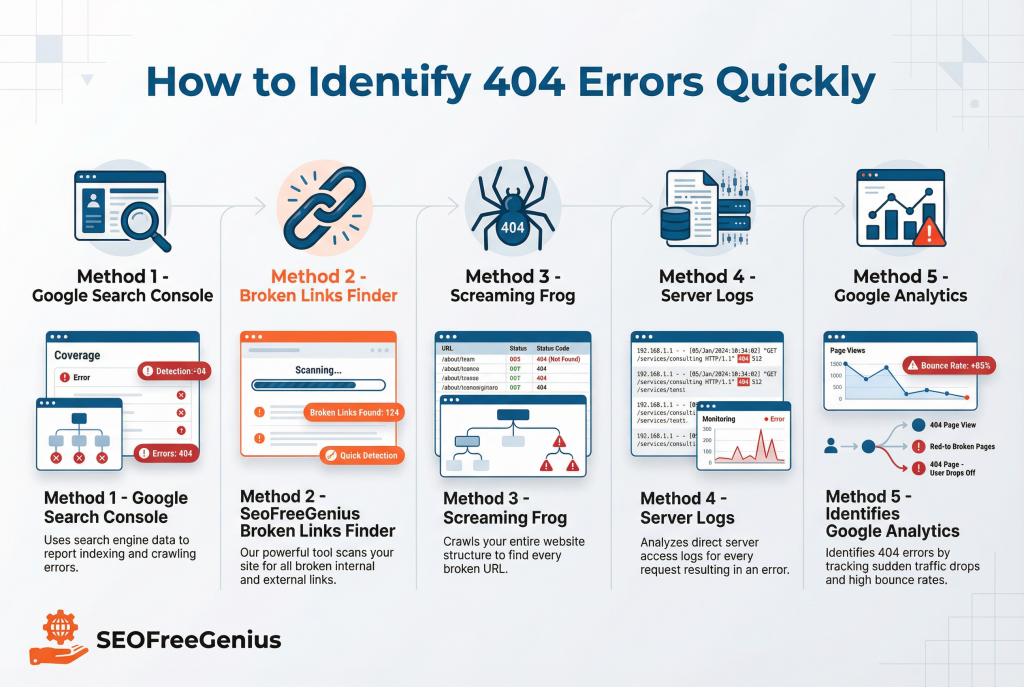
Before you can fix 404 errors, you need to find them. Here are the most effective methods:
Log into your Google Search Console account and navigate to the Coverage report. Google displays all pages it encountered with errors, including 404s. This is the fastest way to see how many 404 errors your site has and which URLs are affected.
Leverage the Broken Links Finder Tool
The Broken Links Finder at SeoFreeGenius crawls your pages and identifies all broken links with their status codes. Simply enter your page URL, and the tool generates a comprehensive report of broken internal and external links, saving you hours of manual checking.
Use Screaming Frog or Similar Crawlers
Tools like Screaming Frog SEO Spider (free for up to 500 URLs) crawl your website like a search engine would, reporting all pages that return error codes. This is ideal for larger websites or detailed audits. For instant online scans, use SeoFreeGenius Broken Links Finder.
Your web server’s access logs contain records of all requests, including 404 responses. While more technical, logs provide detailed information about which URLs visitors and bots are attempting to access.
Set up alerts in Google Analytics to track pages with high bounce rates and errors. Users often navigate to non-existent pages through mistyped URLs or broken external links. mouseflow
Fast Solutions: 5 Ways to Fix 404 Errors
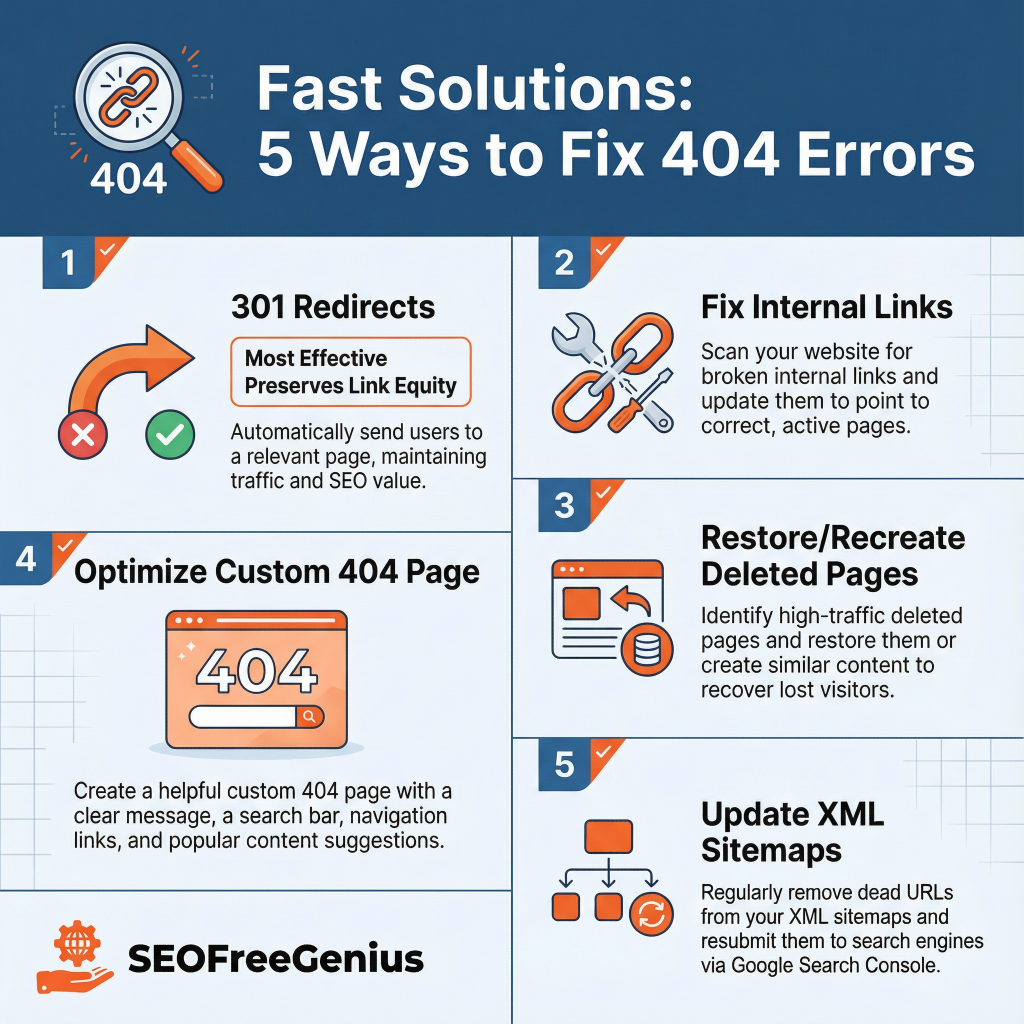
1. Implement 301 Redirects (The Most Effective Method)
A 301 redirect is a permanent redirect that tells search engines and browsers that a page has moved to a new location. It’s the gold standard for fixing 404 errors while preserving SEO value.
When to use 301 redirects:
- You’ve moved a page to a new URL structure
- You’ve deleted a page and want to direct traffic to a similar, relevant page
- You’ve changed your domain
- You’re migrating from HTTP to HTTPS
How to set up 301 redirects:
For WordPress Sites: Use the Redirection plugin or Yoast SEO Premium to create redirects through your dashboard without touching code.
For .htaccess Files: The Htaccess Redirect Generator at SeoFreeGenius creates ready-to-use redirect rules instantly. Enter your domain and URLs, and the tool generates the correct Apache rewrite rules automatically.
Via Your Hosting Control Panel: Most hosting providers (like Bluehost) offer built-in redirect tools. Log in, navigate to Domains > Redirects, and add your old and new URLs.
Example:
Old URL: example.com/old-blog-post
New URL: example.com/updated-blog-article
Redirect: 301 permanent redirect from old to new
Search engines follow the redirect, update their index with the new URL, and users are seamlessly guided to the correct page.
| Platform | Setup Method | Tool/Link |
| Apache | .htaccess | SeoFreeGenius Htaccess Redirect Generator |
| WordPress | Plugin | Redirection Plugin |
| Hosting | Control Panel | Hostinger Redirects Guide |
| Nginx/Cloudflare | Config Rules | Cloudflare Page Rulescollaborada |
2. Fix or Update Internal Links
Instead of relying solely on redirects, proactively fix broken internal links by updating them directly. This is especially important for critical navigation links and high-traffic pages.
Steps:
- Identify broken internal links using the Broken Links Finder tool.
- Update the link with the correct URL directly in your content or navigation menu.
- Test the link to ensure it works.
This approach is faster than setting up redirects and improves your site’s overall link health.
3. Restore or Recreate Deleted Pages
If a 404 error is caused by a deleted page that received significant traffic or backlinks, consider restoring it or creating a new version. High-traffic pages often have established authority and external links; removing them wastes this value.
Options:
- Restore from Backups: Check if your hosting provider has website backups you can restore.
- Recreate Content: Rewrite the deleted page with updated information and redirect the old URL to the new one.
- Consolidate Content: Merge the deleted page’s content into a related page and redirect traffic there.
4. Optimize Your Custom 404 Error Page
While you’re fixing existing 404 errors, make sure your custom 404 page doesn’t create a worse user experience. Create helpful pages with search bars and navigation, as recommended by Moz 404 Best Practices. Avoid blank or generic errors. kimberlyherrington
A well-designed 404 page:
- Clearly states the problem: Use simple language (“This page couldn’t be found”).
- Offers navigation options: Include links to your homepage, popular pages, and search functionality.
- Maintains branding: Keep your site’s design consistent to reassure users they’re still on your website.
- Includes a search bar: Let users search for what they were looking for instead of leaving.
A user-friendly 404 page reduces bounce rates and increases the chances visitors will explore other pages on your site, improving overall user engagement metrics.
5. Update and Submit XML Sitemaps
Your XML sitemap tells search engines which pages on your site should be crawled and indexed. If your sitemap includes URLs that now return 404 errors, update it immediately.
Steps:
- Generate or update your XML sitemap using a tool like the XML Sitemap Generator at SeoFreeGenius (integrated into their suite of free SEO tools).
- Remove any dead URLs from the sitemap.
- Submit the updated sitemap to Google Search Console.
- Allow a few days for Google to re-crawl and update its index.
A clean, accurate sitemap helps Google focus its crawl budget on your actual, working pages.
Advanced Strategies for Large-Scale 404 Error Management
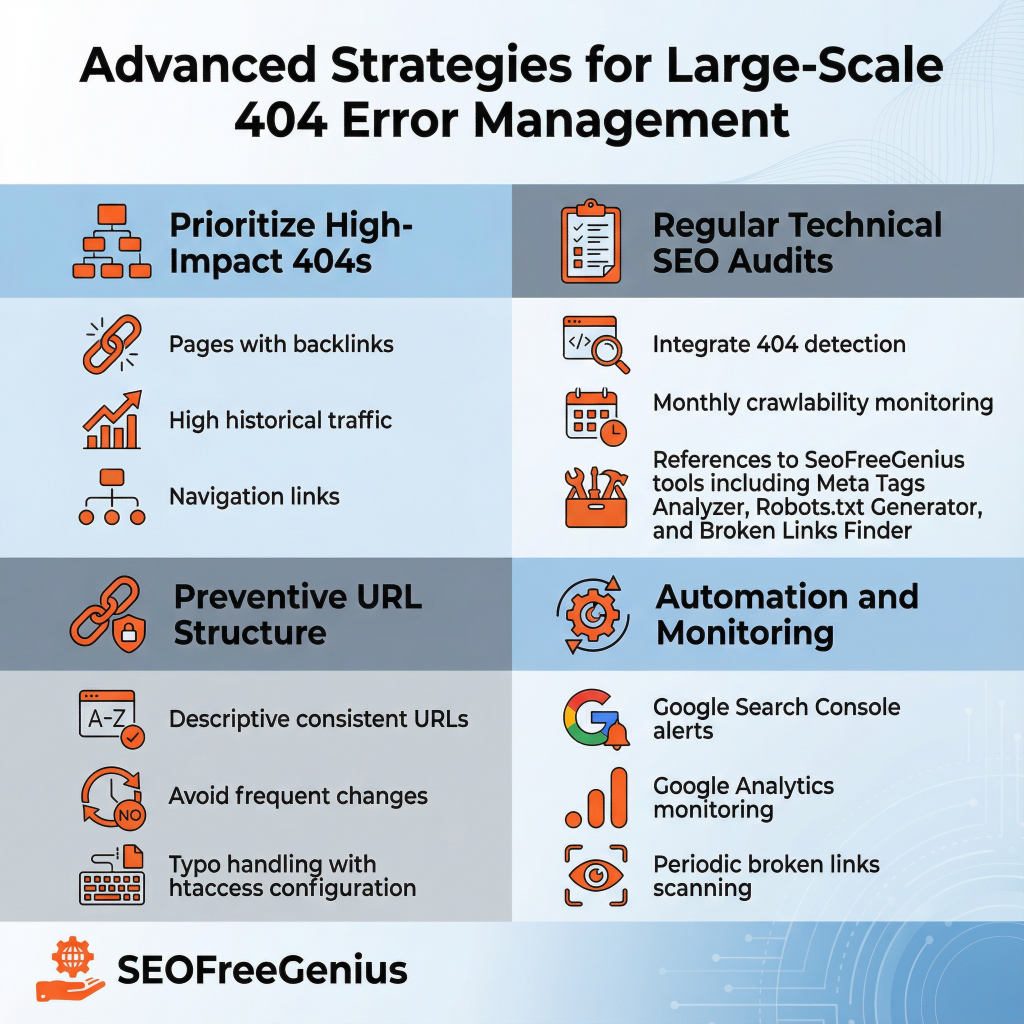
Prioritize High-Impact 404 Errors
Not all 404 errors require the same urgency. Prioritize fixing:
- Pages with existing backlinks: Use tools like a backlink checker using Ahrefs Backlink Checker to identify which 404 pages have external links pointing to them. These are losing valuable link equity. For shared hosting, follow SeoFreeGenius Technical SEO Guide.
- Pages with high historical traffic: Use Google Analytics to find pages that previously received significant organic traffic.
- Pages in your site’s navigation: Broken links in your main menu hurt user experience and crawlability.
Conduct Regular Technical SEO Audits
Make 404 error detection part of your routine technical SEO checklist. Tools from seofreegenius.com help automate this process:
- Use the Meta Tags Analyzer to ensure pages have proper indexation settings (no noindex tags mistakenly applied).
- Use the Robots.txt Generator to ensure you’re not accidentally blocking pages from crawling.
- Monitor your site’s crawlability and indexation monthly.
According to the On-Page SEO Checklist for Small Websites, fixing technical issues like 404 errors, along with improving page speed and mobile-friendliness, can show results in Google Search Console within days.
Implement Proper URL Structure from the Start
Prevent future 404 errors by establishing a clean, consistent URL structure:
- Use descriptive URLs without unnecessary parameters or random numbers (e.g., /blog-post-title instead of /post123).
- Avoid changing your URL structure frequently. When you must change it, implement 301 redirects.
- Use .htaccess rules to handle common typos or variations automatically.
The Htaccess Redirect Generator makes this process straightforward, even for users without technical expertise.
The SEO Impact: Don’t Underestimate 404 Errors
Research and expert consensus confirm that while 404 errors don’t directly trigger manual penalties, their cumulative impact on crawl efficiency, user experience, and link equity can indirectly harm your rankings.
According to technical SEO best practices, fixing 404 errors and managing crawl budget are essential components of a solid technical SEO foundation, particularly on shared hosting environments where crawl efficiency is critical. By preserving your crawl budget and maintaining a positive user experience, you signal to Google that your site is well-maintained and trustworthy.
Preventing Future 404 Errors: Best Practices
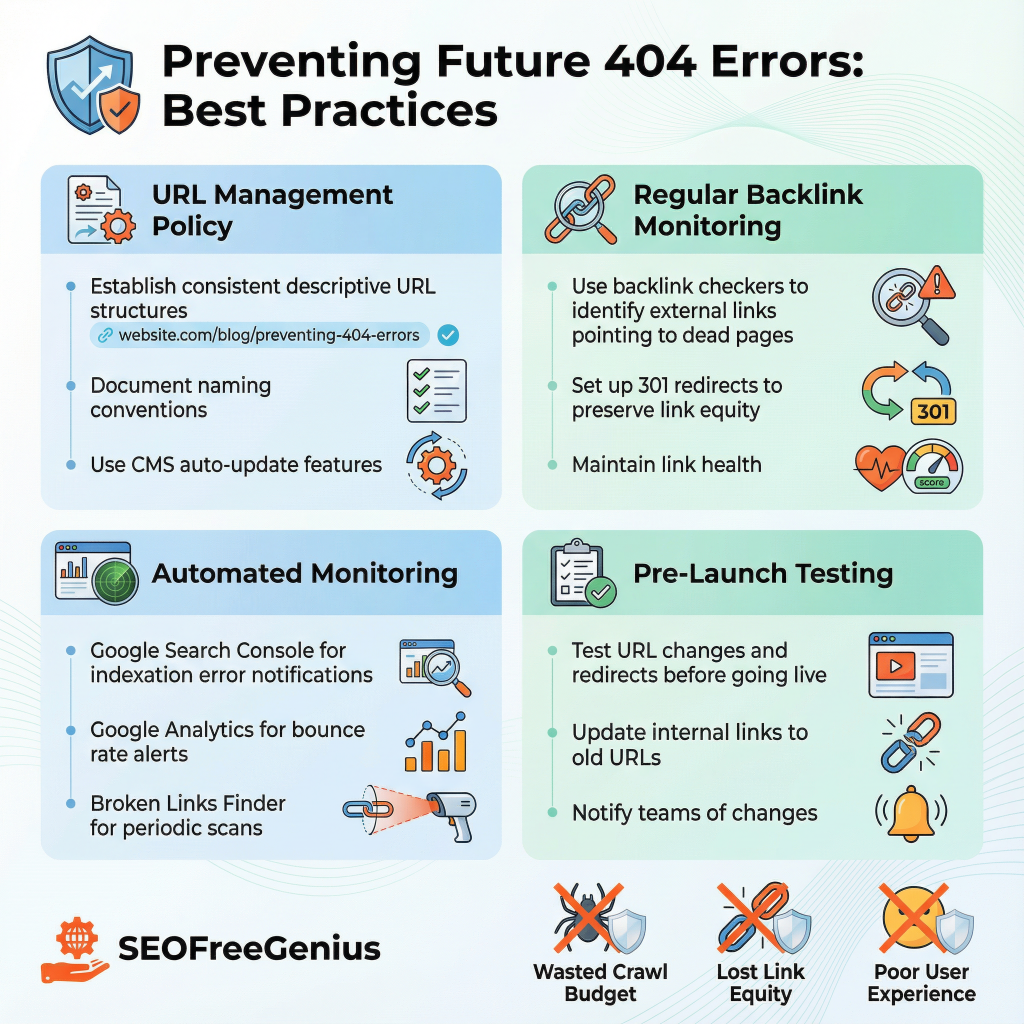
Establish a URL Management Policy
- Document your URL structure conventions and stick to them.
- Communicate URL changes across your team to prevent broken links during content updates.
- Use content management systems (CMS) features that automatically update internal links when URLs change.
Use a backlink checker to identify external links pointing to your site. When backlinks point to pages that no longer exist, set up 301 redirects immediately to preserve link equity.
Automate Monitoring with Tools
Set up automated checks using:
- Google Search Console: Set notifications for new indexation errors.
- Google Analytics: Create alerts for pages with unusual bounce rates that might indicate 404 errors.
- Broken Links Finder: Run periodic scans to catch broken links before they impact users and search engines.
Test URL Changes Before Going Live
Before publishing new URL structures or deleting pages:
- Test redirects to ensure they work correctly.
- Update internal links pointing to the old URLs.
- Notify other teams about the change to prevent confusion.
Pro Tip: After fixing links, update your map. Generate a fresh sitemap with our [XML Sitemap Generator] to tell Google about your clean new structure.
Conclusion: Act Fast, Rank Better
404 errors are a common but easily preventable problem. By identifying and fixing them quickly—using tools like the Broken Links Finder and Htaccess Redirect Generator from seofreegenius.com—you protect your SEO rankings, improve user experience, and maintain your site’s crawl efficiency.
Remember: A 404 error today is a ranking opportunity lost tomorrow. Whether you manage a small blog or a large e-commerce site, implementing these fixes and best practices will keep your website healthy and visible in search results.
Start by running a scan for broken links using the free tools available at seofreegenius.com, prioritize the most impactful errors, and implement 301 redirects for any permanently moved or deleted pages. Your site’s SEO—and your visitors—will thank you. For more technical SEO guidance and free auditing tools, visit the complete resources at seofreegenius.com/blog to strengthen your overall site performance and search visibility.
Samir H. M. — SEO Expert
5+ years building SEO tools. SEOFreeGenius creator—50+ sites to #1.
All Articles →
Samir H. M. is the creator of [seofreegenius.com], offering 66+ free SEO tools from Riyadh. He’s hands-on tested and built features like plagiarism checkers and backlink tools, plus 36 guides to help sites rank better. Practical, no-BS advice for real users.