
Introduction
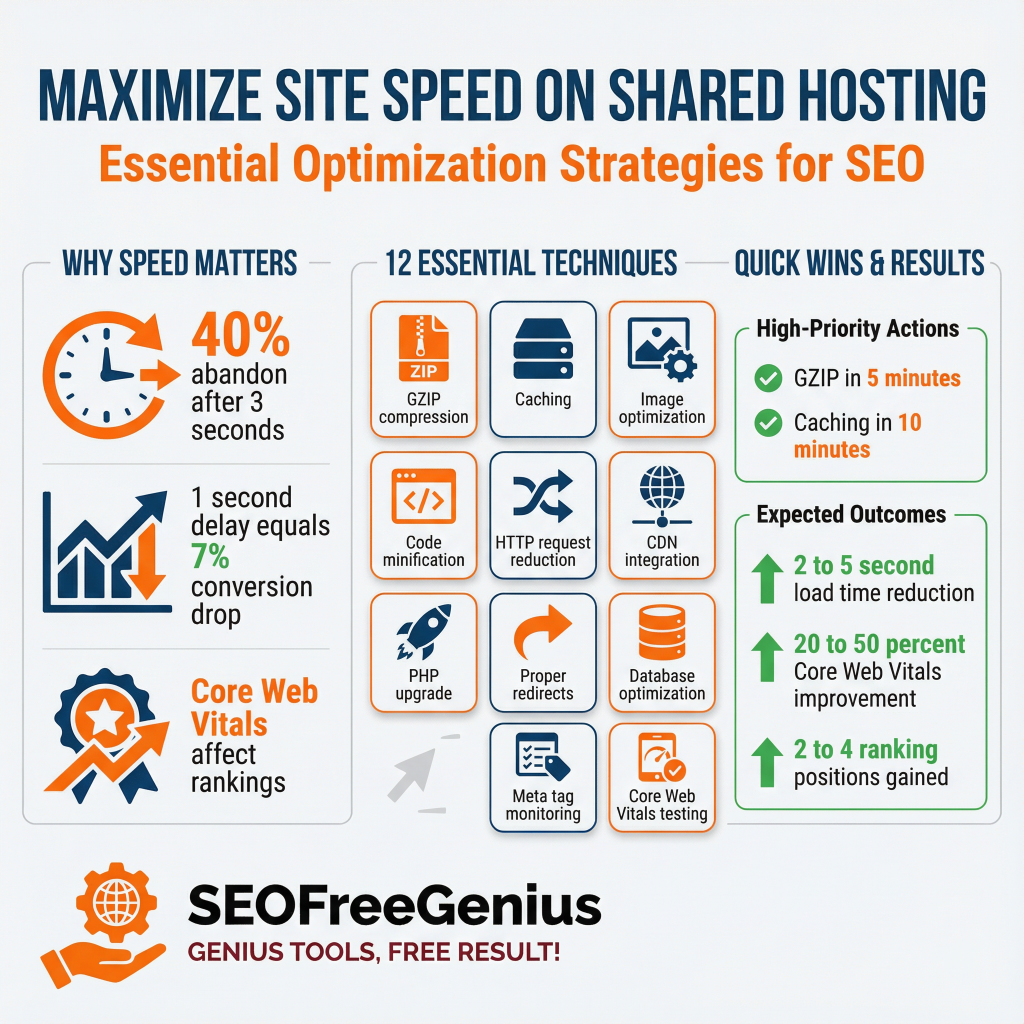
Shared hosting is the most affordable and accessible option for website owners, yet it comes with a critical challenge: performance. When your website shares server resources with hundreds of other sites, speed becomes a significant factor in your SEO rankings and user experience.
Google’s algorithm treats site speed as a ranking factor, and page load times directly impact bounce rates, conversion rates, and crawl efficiency. According to industry research, even a one-second delay in page load time can reduce conversions by up to 7%. For businesses on shared hosting, this creates an urgent question: Can I achieve competitive rankings without expensive dedicated servers? The answer is yes. With the right optimization strategies, shared hosting can deliver excellent performance and strong SEO results. This comprehensive guide reveals proven techniques to accelerate your website, improve Core Web Vitals, and climb Google rankings—all while keeping costs low.
Test Now: Not sure if your shared host is slow? Run a free test with our [Page Speed Insights Checker] to get your Core Web Vitals score.
Why Site Speed Matters for SEO and User Experience
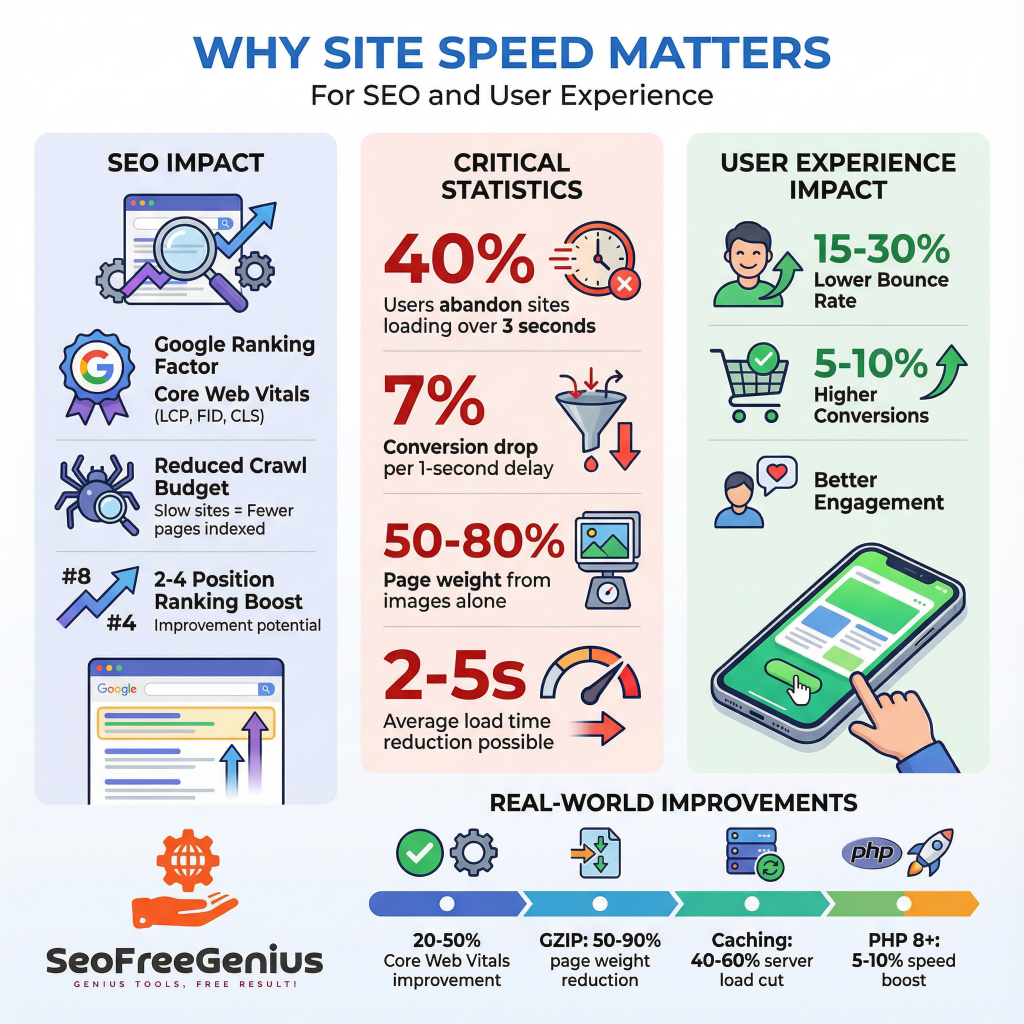
Search engines prioritize user experience, and site speed is a cornerstone metric Google uses to evaluate websites. Google’s ranking algorithm now includes Core Web Vitals—metrics like Largest Contentful Paint (LCP), First Input Delay (FID), and Cumulative Layout Shift (CLS)—as confirmed ranking factors.
Beyond rankings, speed directly impacts crawl budget. Google allocates each domain a limited crawl budget—the number of pages its crawler will fetch in a given timeframe. A fast server handles rapid-fire requests efficiently, allowing Googlebot to index more of your pages and discover fresh content faster. A slow shared hosting server causes Google to back off, leaving updated content undiscovered and stalling your SEO growth.
From a user perspective, slow websites frustrate visitors. Over 40% of users abandon websites that take longer than 3 seconds to load. This directly translates to lost revenue, lower engagement, and higher bounce rates—all negative signals to search engines.
Understanding Shared Hosting Limitations and Opportunities
Why Shared Hosting Can Be Slow
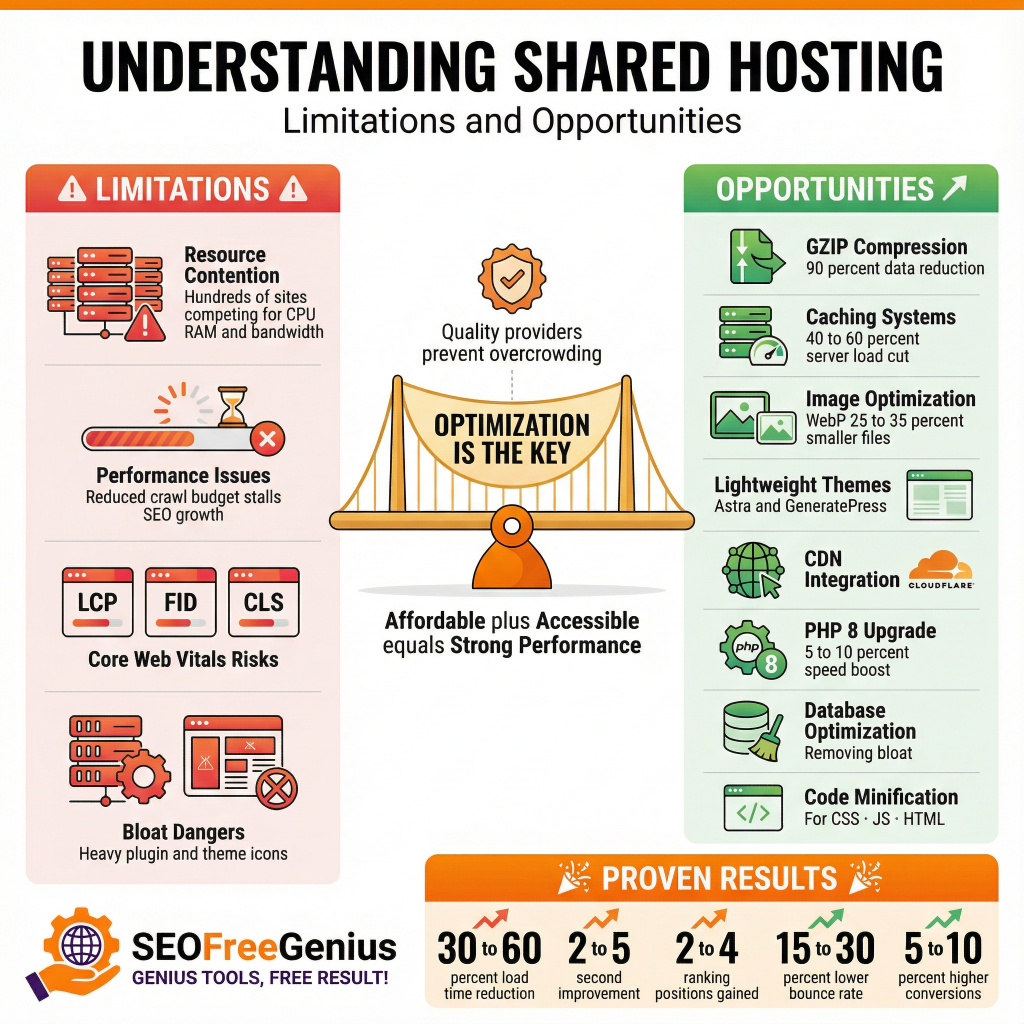
Shared hosting assigns your website to a server that hosts hundreds of other sites simultaneously. All these sites compete for the same CPU, RAM, and bandwidth resources. When another website on your shared server experiences a traffic spike, it can consume a larger portion of resources, directly impacting your site’s performance.
This resource contention is the primary performance challenge of shared hosting. However, this limitation doesn’t mean shared hosting can’t support strong SEO performance. Many successful websites run on shared hosting using smart optimization techniques.
Shared hosting is not inherently bad for SEO—the quality of your hosting provider and your optimization efforts determine performance. Reputable hosting companies manage their infrastructure efficiently, preventing overcrowding that would severely impact all users. By choosing a quality hosting provider and implementing the strategies in this guide, you can achieve competitive site speeds even on shared hosting.
Is your host actually down? Verify server response times with our [Server Status Checker].
Essential Site Speed Optimization Techniques for Shared Hosting
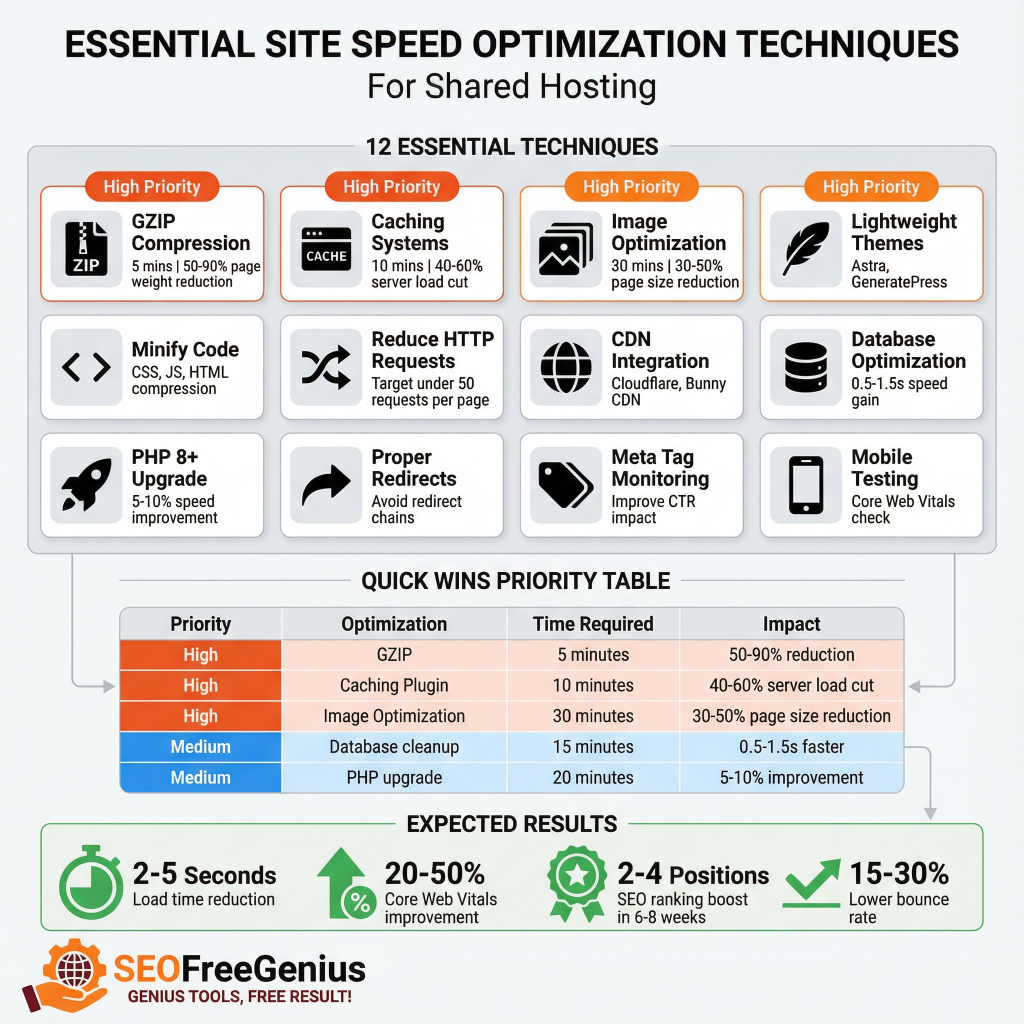
GZIP compression shrinks data transfer by up to 90%, dramatically reducing load times. This is one of the most impactful optimizations for shared hosting environments where bandwidth is limited.
How to enable GZIP compression:
- Access your hosting control panel (cPanel)
- Look for compression or optimization settings
- Enable GZIP compression directly, or add this code to your .htaccess file:
AddOutputFilterByType DEFLATE text/html text/plain text/xml text/css text/javascript application/javascript
This single optimization can reduce page load times by several seconds without requiring code changes or additional resources.
2. Implement Caching Solutions
Caching stores static versions of your web pages, reducing server load by serving pre-built content instead of regenerating pages on every request. This is especially valuable on shared hosting where server resources are limited.
Caching strategies for shared hosting:
Browser Caching: Tell browsers to cache static resources like images, CSS, and JavaScript files locally. Add expires headers via your .htaccess file:
ExpiresActive On
ExpiresByType image/jpeg “access plus 1 year”
ExpiresByType text/css “access plus 1 month”
ExpiresByType text/javascript “access plus 1 month”
WordPress Caching Plugins: For WordPress sites, install lightweight caching plugins:
- WP Super Cache
- W3 Total Cache
- LiteSpeed Cache (if your host supports LiteSpeed)
These plugins reduce database queries and serve static pages faster, significantly improving performance on resource-limited servers.
3. Optimize and Compress Images
Images typically consume 50-80% of total page weight. Unoptimized images are the #1 cause of slow websites. Image optimization provides massive speed gains without sacrificing quality.
Image optimization best practices:
Check First: Do you know which pages are too heavy? Find your largest assets instantly with our [Page Size Checker].
- Compress images to under 100KB each using tools like TinyPNG or Imagify
- Resize images to match display dimensions (don’t display 4000px images on a 400px mobile screen)
- Use modern formats like WebP, which reduces file size by 25-35% compared to JPEG
- Add descriptive alt text: “site speed optimization for shared hosting” (improves accessibility and SEO)
- Use descriptive filenames with hyphens: “site-speed-optimization-guide.jpg”
- Limit images to 3-4 per page to maintain focus and speed
Enable lazy loading to defer image loading until they enter the viewport. WordPress lazy loading plugins load images only when users scroll them into view, reducing initial page load time significantly.
4. Choose Lightweight WordPress Themes and Plugins
Heavy themes packed with unnecessary features drain shared hosting resources and bloat page load times. Lightweight, performance-optimized themes are essential on shared hosting.
Recommended lightweight themes:
- Astra
- GeneratePress
- Neve
These themes are optimized for speed, properly coded, and include minimal bloat.
Plugin management for speed:
- Audit all installed plugins and deactivate unused ones
- Heavy plugins like sliders and animation effects should be replaced with lighter alternatives
- Prioritize plugins that serve essential functions
- Regularly check plugin compatibility and performance impact
Removing just 5-10 unused plugins can improve load times by 1-2 seconds on shared hosting.
5. Minify CSS, JavaScript, and HTML
Minification removes unnecessary code, whitespace, and comments from these files, reducing their size without changing functionality. Smaller files transfer faster, improving page load times.
Minification tools and plugins:
- Autoptimize (WordPress plugin)
- Asset CleanUp
- Fast Velocity Minify
- WP Rocket (premium but comprehensive)
These tools automatically minify and combine files, reducing HTTP requests (more on this below).
Each resource (image, CSS file, JavaScript file, font) requires an HTTP request. Shared servers struggle under the load of high HTTP request counts. Aim for under 50 HTTP requests per page.
Strategies to reduce HTTP requests:
- Combine CSS files: Merge multiple stylesheets into one
- Combine JavaScript files: Merge non-critical scripts
- Eliminate render-blocking resources: Defer non-critical CSS and JavaScript
- Use CSS sprites: Combine multiple small images into one image file
- Limit external resources: External fonts, tracking scripts, and third-party widgets each add HTTP requests
Use the Link Analyzer tool from SEOFreeGenius to count and identify all requests on your pages.
7. Integrate a Content Delivery Network (CDN)
A CDN distributes your content across servers worldwide. When users request your site, the CDN serves content from the geographically closest server, dramatically reducing latency and improving load times globally.
CDN benefits for shared hosting:
- Reduces load on your shared server
- Improves loading speed for international visitors
- Caches static content (images, CSS, JavaScript, fonts)
- Handles traffic spikes without impacting your server
Free and affordable CDN options:
- Cloudflare (free tier available)
- Bunny CDN
- KeyCDN
Even on a budget shared hosting plan, integrating a CDN can drastically boost speed, especially for geographically distributed audiences.
WordPress stores everything in a database—posts, comments, settings, revisions. A bloated database slows query times and page load speeds. Regular database optimization removes unnecessary data accumulation.
Database optimization strategies:
- Use database optimization plugins:
- WP-Optimize
- Advanced Database Cleaner
- Cleaner (by Code Potent)
- Remove post revisions: WordPress automatically saves post revisions, which accumulate over time. Limit revisions in your wp-config.php file:
define( ‘WP_POST_REVISIONS’, 3 );
- Delete spam comments and unnecessary data
- Remove expired transients (temporary cached data)
- Clean up abandoned plugin data
A lean database can improve page load times by 0.5-1.5 seconds on shared hosting.
9. Upgrade to PHP 8+ and Enable OPcache
Modern PHP versions (7.4 and especially PHP 8.x) are significantly faster than older versions. PHP 8 includes performance improvements of 5-10% out of the box. OPcache compiles PHP code into optimized bytecode, reducing server load.
How to upgrade and enable OPcache:
- Login to cPanel and select “Select PHP Version”
- Choose PHP 8.0 or higher
- In the same section, look for “PHP Extensions” or “Module Extensions”
- Enable OPcache to cache compiled PHP code
This is a quick, high-impact optimization that’s accessible in most shared hosting environments.
10. Use .htaccess Redirects Properly
Redirect chains (redirect → redirect → redirect) slow page load times. Every redirect adds 100-300ms to load times. Verify your redirects are direct, not chained.
Using the Htaccess Redirect Generator from SEOFreeGenius, you can:
- Create 301 permanent redirects without code knowledge
- Verify redirect rules before adding them to your .htaccess file
- Consolidate redirect chains into single redirects
- Handle URL migrations cleanly while preserving SEO equity
Proper redirects ensure users and search engines reach the correct page without unnecessary delays.
11. Monitor Meta Tags and Fix Technical Issues
Meta tags don’t directly impact speed, but they influence click-through rates from search results. Higher CTR signals improve rankings, which is why monitoring meta tags is part of comprehensive optimization.
Use the Meta Tags Analyzer from SEOFreeGeniusto:
- Verify title tags are under 60 characters and include your target keyword
- Ensure meta descriptions are 150-160 characters and compelling
- Check for duplicate meta tags across pages
- Identify missing meta descriptions
Well-crafted meta tags improve CTR, which correlates with improved rankings and visibility.
12. Test Mobile Responsiveness and Core Web Vitals
Google’s mobile-first indexing means mobile performance is critical. Use Google PageSpeed Insights and Google Mobile-Friendly Test to:
- Identify speed bottlenecks and ranking opportunities
- Check mobile responsiveness
- Review Core Web Vitals scores
- Get specific recommendations for your site
Core Web Vitals directly impact rankings, making testing essential before and after optimizations.
Advanced Shared Hosting Optimization Strategies
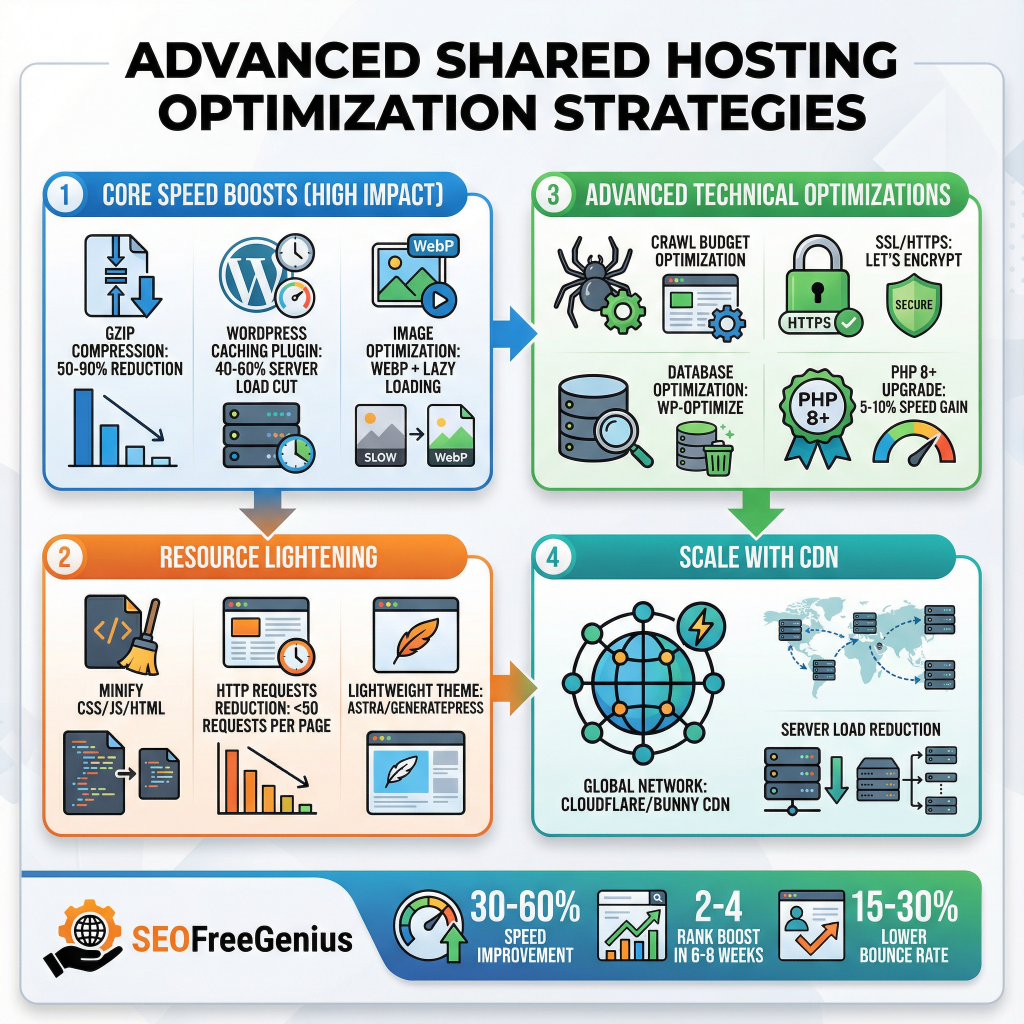
Leverage Crawl Budget Optimization
Shared hosting with limited server resources makes crawl budget critical. Google limits the number of pages it crawls based on site speed and health. Optimize crawl budget with these techniques:
Create and optimize robots.txt: Use the Robots.txt Generator from SEOFreeGenius to:
- Block non-essential folders like /admin/, /wp-admin/
- Disallow duplicate content
- Point Googlebot to your XML sitemap
- Prevent wasted crawl budget on pages that shouldn’t rank
Submit XML sitemaps: Generate an XML sitemap and submit it to Google Search Console. Sitemaps help search engines discover all important pages, especially deep URLs that might otherwise be missed on crawl-budget-limited servers.
Fix 404 errors and broken links: Every broken link wastes crawl budget and damages user experience. Use the Broken Links Finder to identify and fix broken internal and external links.
HTTPS is a confirmed ranking factor and signals trustworthiness to both users and search engines. Modern shared hosting providers include free SSL certificates, making HTTPS accessible to everyone.
Enable HTTPS:
- Access your cPanel and select “AutoSSL” or “SSL/TLS Manager”
- Install a free Let’s Encrypt SSL certificate
- Update your WordPress site URL to use HTTPS (Settings > General)
- Redirect all HTTP traffic to HTTPS via .htaccess
HTTPS improves security, user trust, and is essential for SEO rankings.
Monitor Backlinks and Internal Linking
Backlinks are votes of confidence from other websites. Internal linking distributes authority within your site and guides search engines to important pages.
Use the Backlink Checker from SEOFreeGenius to:
- Track your backlink profile
- Identify new linking opportunities
- Monitor lost backlinks
- Assess competitor backlink strategies
Use the Website Links Count Checker from SEOFreeGenius to:
- Verify internal link counts
- Identify pages with insufficient internal links
- Ensure homepage receives strong link authority
- Guide users to important pages through strategic internal linking
Quality backlinks and internal linking boost domain authority and page rankings.
Technical Quick Wins Checklist
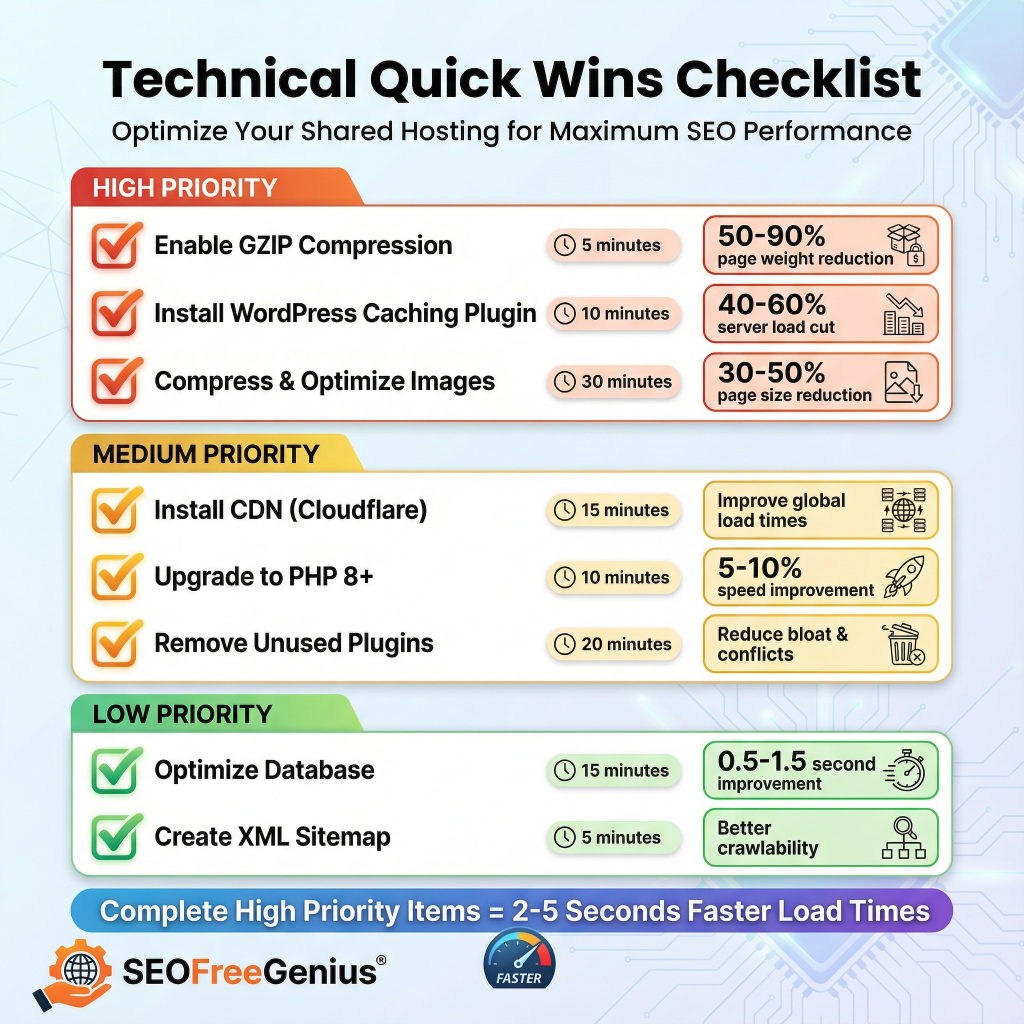
Implement these quick-win optimizations in order of impact:
| Priority | Optimization | Time Required | Impact |
| High | Enable GZIP compression | 5 minutes | Reduce page weight by 50-90% |
| High | Install WordPress caching plugin | 10 minutes | Reduce server load 40-60% |
| High | Compress and optimize images | 30 minutes | Reduce page size 30-50% |
| Medium | Install CDN (Cloudflare) | 15 minutes | Improve global load times |
| Medium | Upgrade to PHP 8+ | 10 minutes | 5-10% speed improvement |
| Medium | Remove unused plugins | 20 minutes | Reduce bloat and conflicts |
| Low | Optimize database | 15 minutes | 0.5-1.5 second improvement |
| Low | Create XML sitemap | 5 minutes | Better crawlability |
Completing the “High” priority items should improve load times by 2-5 seconds on average shared hosting.
Shared Hosting Provider Selection Matters
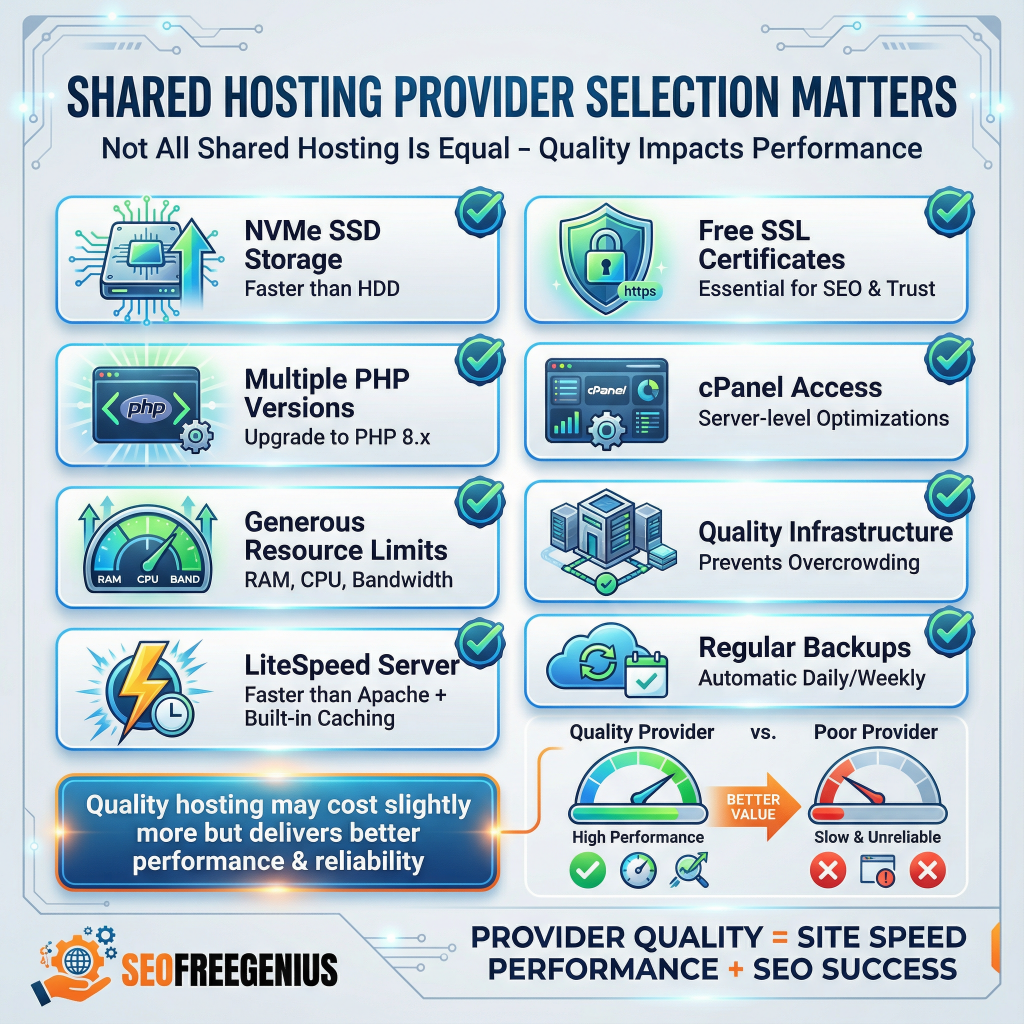
Not all shared hosting is created equal. When choosing or evaluating your hosting provider, prioritize these features:
Essential shared hosting features:
- NVMe SSD storage: Significantly faster than traditional HDD storage
- Free SSL certificates: HTTPS is essential and should be included
- Multiple PHP versions: Ability to upgrade to PHP 8.x
- cPanel access: Provides direct control over server-level optimizations
- Generous resource limits: RAM, CPU, and bandwidth allocations
- Quality infrastructure: Reputable providers prevent server overcrowding
- LiteSpeed server: Faster than Apache, with built-in caching support
- Regular backups: Automatic daily or weekly backups included
Research your hosting provider’s server specifications and uptime guarantees. A quality shared hosting provider might cost slightly more but delivers significantly better performance and reliability.
Measuring Improvement: Tools and Metrics
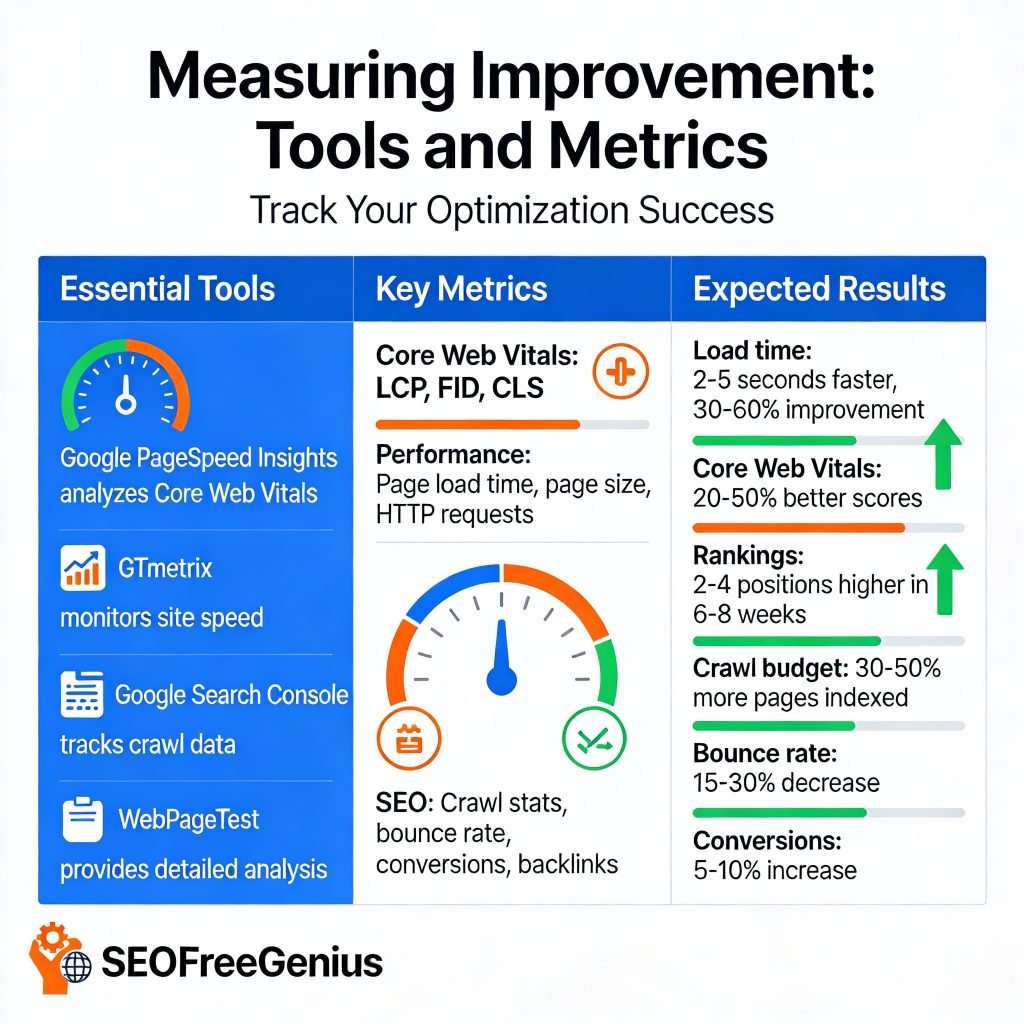
Track your optimization progress using these free tools:
Google PageSpeed Insights (pagespeed.web.dev)
- Provides Core Web Vitals scores
- Shows specific improvement opportunities
- Benchmarks against competitors
- Tracks performance trends
GTmetrix (Free account available)
- Detailed waterfall analysis
- Page size and request count tracking
- Historical performance graphs
Google Search Console
- Core Web Vitals report for your entire site
- Crawl statistics and coverage insights
- Mobile usability issues
WebPageTest (webpagetest.org)
- Free tool with detailed performance analysis
- Test from multiple geographic locations
- Identify rendering bottlenecks
Monitor these metrics before and after implementing optimizations to quantify improvements.
Real-World Results: What to Expect
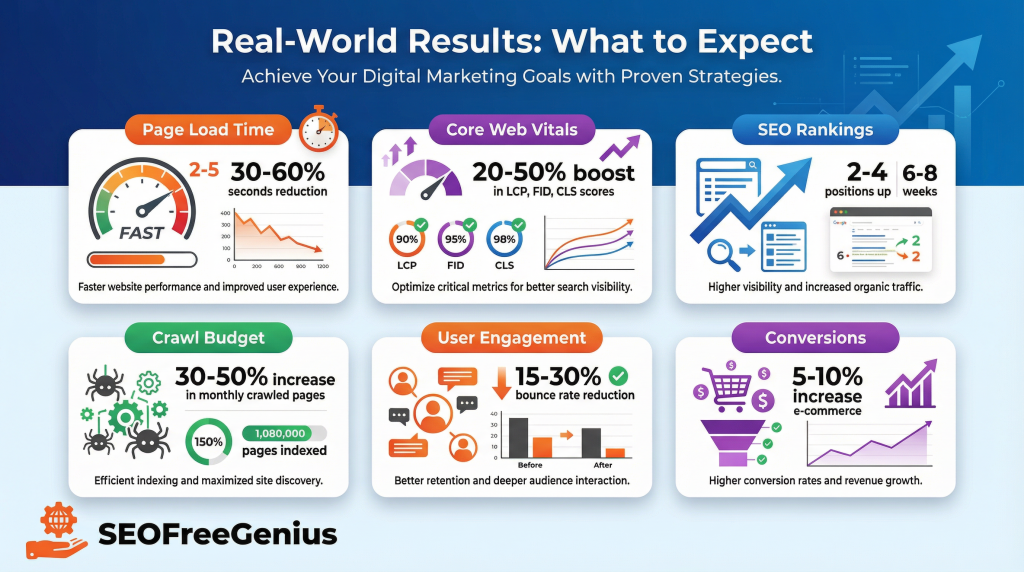
Implementing these strategies delivers measurable improvements on shared hosting:
- Average page load time reduction: 2-5 seconds (30-60% improvement)
- Core Web Vitals improvement: 20-50% improvement in LCP, FID, CLS scores
- SEO ranking improvement: 2-4 position improvement within 6-8 weeks
- Crawl budget improvement: 30-50% increase in pages crawled monthly
- User engagement improvement: 15-30% reduction in bounce rate
- Conversion improvement: 5-10% increase in conversion rates (for e-commerce)
These results vary based on current site condition and traffic patterns, but quality optimizations deliver consistent improvements.
Common Shared Hosting Speed Mistakes to Avoid
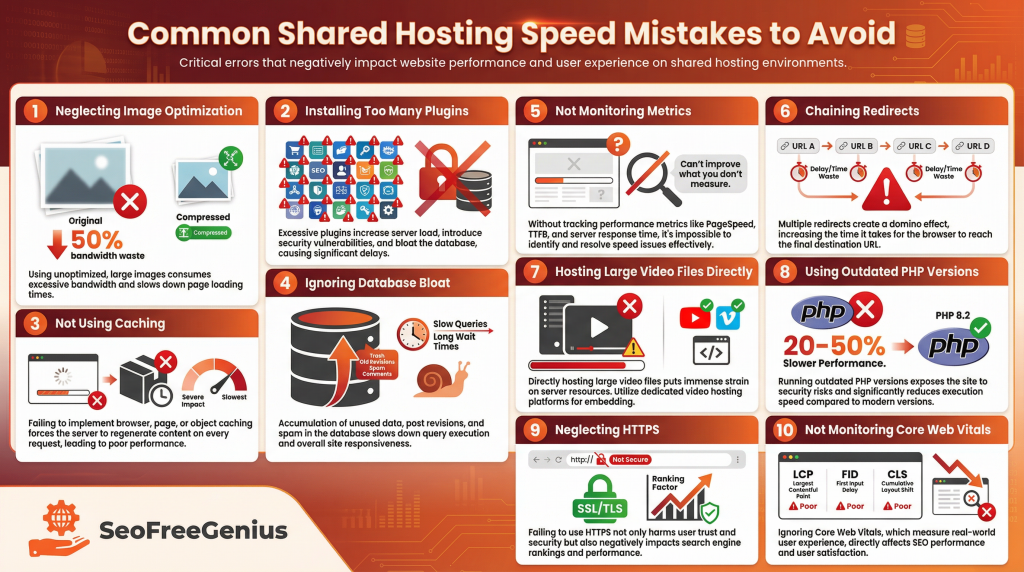
Avoid these critical mistakes that undo optimization efforts:
- Neglecting image optimization: Uncompressed images waste 50% of bandwidth
- Installing too many plugins: Each plugin adds code and database queries
- Not using caching: Severely impacts shared hosting performance
- Ignoring database bloat: Accumulates quickly, slowing queries
- Not monitoring metrics: You can’t improve what you don’t measure
- Chaining redirects: Creates unnecessary delays
- Hosting large video files directly: Use YouTube or Vimeo embedding instead
- Using outdated PHP versions: Older versions are 20-50% slower
- Neglecting HTTPS: Missing this ranking factor and user trust signal
- Not monitoring Core Web Vitals: These directly impact rankings
Avoiding these mistakes maintains your optimization gains and prevents performance degradation over time.
Conclusion
Site speed on shared hosting is entirely achievable with the right approach. Focus on these key priorities:
- Enable compression and caching (biggest impact, quickest wins)
- Optimize images aggressively (typically solves 50% of speed issues)
- Remove bloat (unused plugins and themes)
- Monitor performance (measure before/after improvements)
- Use a CDN (especially for global audiences)
- Choose quality hosting (prevents server-level performance issues)
By systematically implementing these strategies—from compression and caching to CDN integration and database optimization—you’ll build a solid performance foundation that supports SEO growth, user engagement, and conversions.
The best part? These optimizations cost nothing beyond your existing hosting plan. You’re simply maximizing the resources already available to you.
Start with the high-priority quick wins today. Enable GZIP compression, install a caching plugin, and optimize your images. Within days, you’ll see improvements in Google PageSpeed Insights and user experience. Within weeks, you’ll see the results in Google Search Console impressions and rankings.
For comprehensive SEO tools to support your optimization efforts, visit SEOFreeGenius.com where you’ll find free tools to analyze links, check broken pages, generate XML sitemaps, optimize meta tags, and monitor your SEO progress. These tools work perfectly on shared hosting and cost nothing.
Site speed on shared hosting isn’t a limitation—it’s an opportunity to outperform competitors who haven’t bothered optimizing. Your users will notice the faster experience, Google will reward you with better rankings, and your conversions will improve. Start optimizing today.
Samir H. M. — SEO Expert
5+ years building SEO tools. SEOFreeGenius creator—50+ sites to #1.
All Articles →
Samir H. M. is the creator of [seofreegenius.com], offering 66+ free SEO tools from Riyadh. He’s hands-on tested and built features like plagiarism checkers and backlink tools, plus 36 guides to help sites rank better. Practical, no-BS advice for real users.