
Published: March 5, 2026
Author: SEO Free Genius Team
Reading time: 9 minutes
Introduction
Imagine this: A potential customer clicks on a link to your product page from Google search results, only to land on a frustrating “404 – Page Not Found” error. Within seconds, they hit the back button and click on your competitor’s link instead. This scenario plays out thousands of times daily across the web, costing businesses traffic, conversions, and search rankings.
Broken links are one of the most common yet overlooked technical SEO problems. They damage user experience, waste Google’s crawl budget, hurt your site’s authority, and can even lead to lost revenue. The good news? You don’t need expensive enterprise SEO software to find and fix them.
In this comprehensive guide, you’ll learn a proven workflow for auditing and fixing broken links using only free tools from SEOFreeGenius. Whether you’re managing a small business website or a large content site, this step-by-step process will help you identify broken internal and external links, prioritize fixes, and maintain a healthy link structure over time. By the end of this article, you’ll have a repeatable system for keeping your site free of broken links, protecting both your SEO performance and user experience—all without spending a dollar on premium crawlers.
Why Broken Links Hurt Your Site
Before diving into the technical workflow, it’s essential to understand exactly how broken links impact your website’s performance across multiple dimensions.
Lost Link Equity and Wasted Crawl Budget
Every website has a limited crawl budget—the number of pages Google’s bot will crawl during each visit to your site. When Googlebot encounters broken links, it wastes precious crawl resources trying to access non-existent pages instead of discovering and indexing your valuable content. Internal broken links also disrupt the flow of link equity (PageRank) throughout your site. When you link to a 404 page from a high-authority page, that link equity is lost rather than being passed to another valuable page on your site. Over time, this weakens your overall domain authority and makes it harder for individual pages to rank.
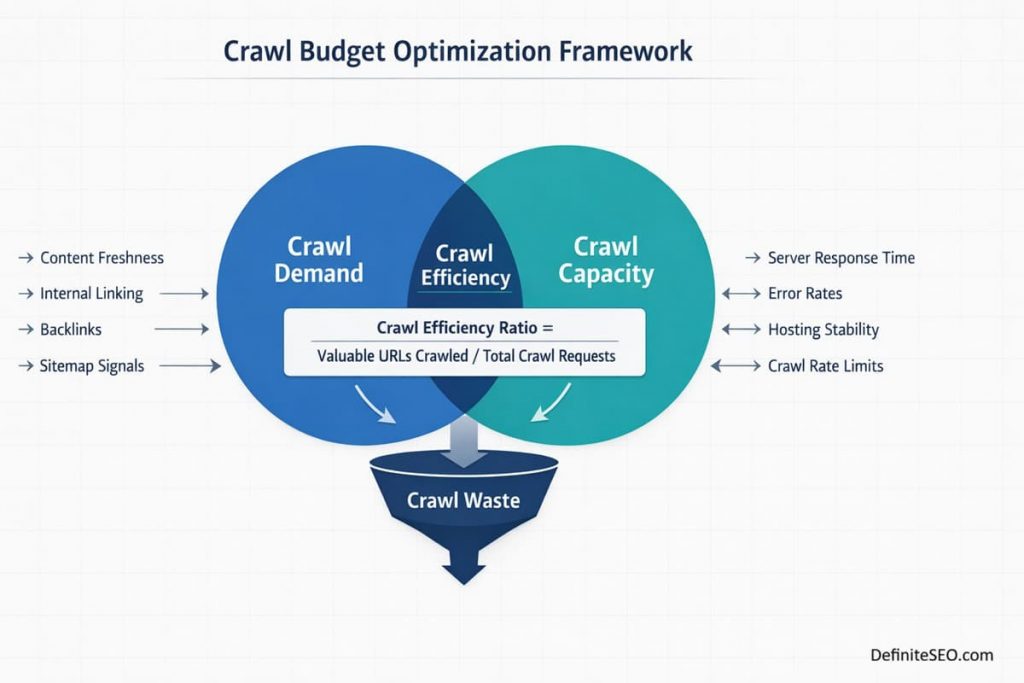
Figure 1: Crawl budget optimization showing how broken links create crawl waste
Frustrated Users and Reduced Conversions
From a user experience perspective, broken links are deal-breakers. According to accessibility and UX research, visitors who encounter multiple 404 errors are significantly more likely to leave your site immediately and never return.
This is especially damaging when broken links appear in:
- Navigation menus (header, footer, sidebar)
- Product pages or checkout flows
- Blog posts pointing to related articles or resources
- Landing pages from paid advertising campaigns
- Email marketing campaigns
Each broken link represents a missed opportunity to guide visitors deeper into your site, build trust, and drive conversions.
While Google has stated that a few broken links won’t directly cause a ranking penalty, numerous 404 errors signal poor site maintenance and low content quality. Sites with widespread broken link problems often experience:
- Reduced crawl frequency as Google de-prioritizes poorly maintained sites
- Lower quality scores in Google’s algorithms
- Decreased user engagement metrics (high bounce rate, low time on site)
- Loss of external backlinks if the broken pages previously had valuable inbound links
According to recent SEO impact studies, broken links in navigation elements and from high-authority pages cause the most significant SEO damage.
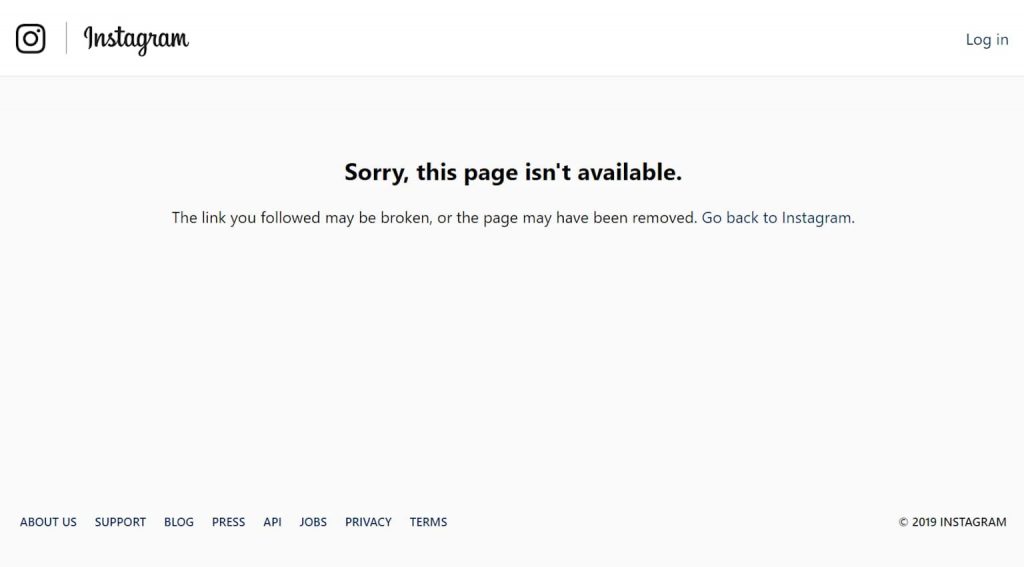
Figure 2: Example 404 error page showing broken link user experience
Example Scenario: The Cost of One Broken Link
Consider this real-world example: An e-commerce site redesigned their product categories and changed dozens of URLs. They failed to set up proper redirects, leaving old category links broken. Within three months:
- Organic traffic dropped 35% as Google stopped crawling those sections efficiently
- Conversion rate decreased 22% due to frustrated users hitting dead ends
- Several high-authority blogs removed backlinks to the broken pages
- Customer support requests about “missing pages” increased significantly
All of this could have been prevented with a simple broken link audit and proper 301 redirects.
Step 1: Find Problem Pages With Broken Links Finder
The first step in any broken link audit is identifying which pages contain broken links. The Broken Links Finder from SEOFreeGenius makes this process straightforward and efficient.
How to Use the Broken Links Finder
- Navigate to seofreegenius.com/broken-links-finder
- Enter the URL of the page you want to scan (start with your homepage)
- Click Check or Submit
- Wait while the tool crawls the page and tests all links
- Review the detailed report showing broken internal and external links
The tool will identify:
- Internal broken links: Links pointing to pages on your own domain that return 404 errors
- External broken links: Links to other websites that are no longer accessible
- Redirect chains: Links that go through multiple redirects before reaching the final destination
- Slow-loading links: URLs that take an unusually long time to respond
The Broken Links Finder report typically includes these key metrics for each problematic link:
| Metric | What It Means |
| Status Code | HTTP response code (404 = not found, 301 = redirect, 500 = server error, etc.) |
| Link Text | The anchor text used for the link (helps identify context) |
| Source Location | Where on the page the broken link appears (header, content, footer) |
| Target URL | The destination URL that’s broken |
Table 1: Key metrics in broken link reports
Not all broken links are equally important. Focus first on:
- Template pages: Header, footer, and sidebar links that appear on every page
- High-traffic pages: Your homepage and top-performing content
- Conversion pages: Product pages, landing pages, and checkout flows
- Recent content: Newly published pages where broken links indicate ongoing issues
Pages with the most broken links often indicate systematic problems—for example, a redesign where entire sections were moved without proper redirects, or a content management system (CMS) issue generating malformed URLs.
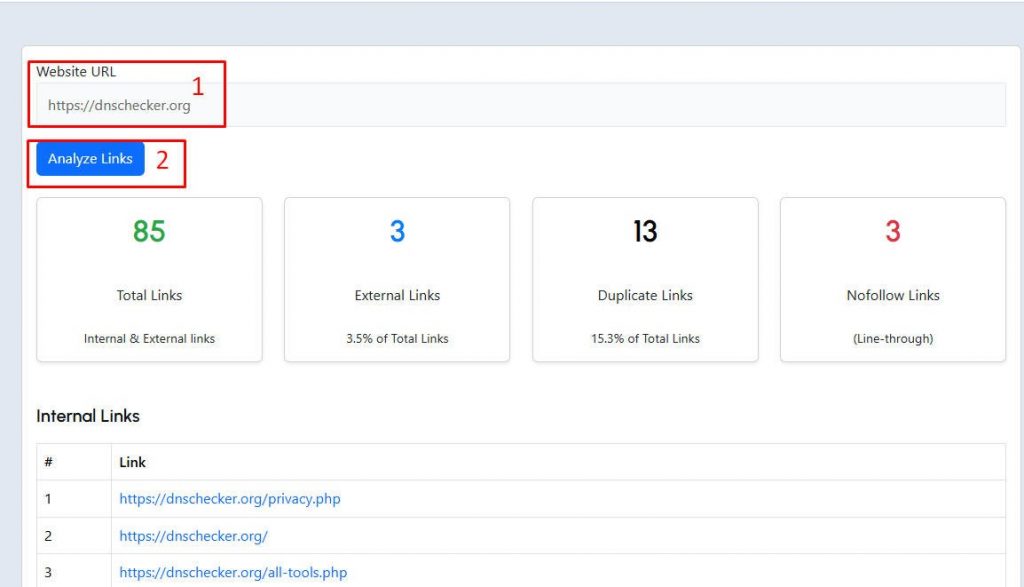
Figure 3: Link checker tool interface showing internal vs external link analysis
Step 2: Validate Issues Fast With Open All URLs
Once you have a list of potentially broken links, you need to verify them quickly—especially if you’re dealing with dozens or hundreds of URLs. The Open All URLs tool is perfect for this bulk validation step.
- Copy the list of suspect URLs from your Broken Links Finder report
- Visit seofreegenius.com/open-all-urls
- Paste all URLs into the text box (one per line, or comma-separated)
- Click Open All URLs
- The tool will open each URL in a new browser tab simultaneously
This allows you to:
- Visually confirm 404 errors rather than relying solely on status codes
- Check redirect chains to see where URLs actually land
- Identify soft 404s (pages that return 200 status but show error content)
- Spot mis-configured pages that technically load but display incorrectly
When reviewing the opened tabs:
- Look for genuine 404 pages (server error pages, “page not found” messages)
- Check if pages have simply moved to new URLs (candidates for 301 redirects)
- Identify pages that load but contain no content or only template elements (soft 404s)
- Note external links that now redirect to unrelated content or competitor sites
Pro tip: Most browsers limit how many tabs can open simultaneously (typically 20–30). If you have more than 30 URLs to check, break them into batches.
For external broken links, you have two choices:
- Update the link if you can find where the content moved (use Google search or the Wayback Machine)
- Remove the link if the site is permanently down or the content is gone
Don’t waste time trying to fix every external link, especially if:
- The link is in old content with minimal traffic
- The broken external link isn’t central to your content’s value
- Removing it doesn’t hurt the reader’s understanding
Focus your energy on high-value external links from authoritative sources that support your content.
Step 3: Decide: Fix, Redirect, or Remove
Now that you’ve identified and validated broken links, you need to decide the best course of action for each one. The right fix depends on why the link is broken and what value it provided.
For internal links (links between pages on your own site), the fix is usually straightforward: update the link to point to the correct URL.
Common causes of internal broken links:
- Typos in manually typed URLs
- URLs changed during site redesigns or migrations
- Content moved to new sections without updating old links
- Deleted pages that were still referenced elsewhere
- CMS or plugin errors generating malformed URLs
How to fix:
- Identify the correct current URL for the content
- Update the old link in your page’s HTML or CMS editor
- Save and publish the changes
- Re-scan with Broken Links Finder to confirm the fix
For sites with many internal broken links, use your CMS’s global search-and-replace feature (available in WordPress, Drupal, etc.) to fix multiple instances at once.
Use 301 Redirects for Removed or Moved Content
When a page has been permanently removed or moved to a new URL, implement a 301 permanent redirect. This tells search engines and browsers that the page has moved permanently, preserving link equity and automatically sending visitors to the new location.
When to use 301 redirects:
- Content has been consolidated into a different page
- URLs changed due to site restructuring
- Product pages removed but similar products exist
- Old blog posts merged into comprehensive guides
- Campaigns or landing pages that ended but still receive backlinks
Example redirect scenarios:
| Old URL (404) | New URL | Reason |
| /blog/seo-tips-2023/ | /blog/seo-guide-2026/ | Content updated |
| /products/old-widget/ | /products/new-widget/ | Product replaced |
| /services/consulting/ | /services/ | Page consolidated |
Table 2: Example 301 redirect mappings
Always redirect to the most relevant existing page. If no relevant page exists and the content has no value, return a genuine 404 rather than redirecting to your homepage (this creates a poor user experience and confuses search engines).
For external broken links, the decision is simpler:
- Update the link if the content moved to a new URL and you can find it
- Remove the link if the site is permanently offline or content is gone
- Keep the link with a note if it’s a historically important reference (e.g., citing academic research that’s archived)
Many SEO best practice guides recommend removing broken external links rather than letting them linger, as they provide no value to readers and may signal outdated content to search engines.
Step 4: Implement Redirects Without Breaking Anything
Setting up redirects incorrectly can cause more problems than broken links themselves. Follow these principles to implement safe, effective redirects.
- One hop only: Avoid redirect chains (A → B → C). Always redirect directly from the old URL to the final destination.
- Relevant destination: Redirect to the most closely related page, not your homepage.
- No loops: Never create circular redirects (A → B → A).
- Permanent (301) vs Temporary (302): Use 301 for permanent moves, 302 only for temporary situations like A/B tests.
According to technical SEO research, redirect chains dilute link equity and slow down page loading, so always aim for direct redirects.
How to Create Redirects Using Htaccess Generator
For Apache servers (most shared hosting), the easiest way to create redirects is through your .htaccess file. Use the Htaccess Redirect Generator tool to create properly formatted redirect rules.
Steps:
- Visit seofreegenius.com/htaccess-redirect-generator
- Enter your old URL (the broken one)
- Enter your new URL (the destination)
- Select 301 Permanent Redirect
- Click Generate
- Copy the generated code
The tool will produce code like this:
Redirect 301 /old-page/ https://yoursite.com/new-page/
Adding redirects to your .htaccess file:
- Access your site files via FTP or hosting control panel file manager
- Locate the .htaccess file in your site’s root directory
- Back up the file first before making changes
- Paste the redirect code above any existing rules
- Save the file
- Test the redirect by visiting the old URL
After implementing redirects, always test them:
- Open the old URL in a browser and confirm it automatically redirects to the new one
- Use browser developer tools (Network tab) to verify it’s a 301 response
- Check that the destination page loads properly
- Clear your browser cache if the redirect doesn’t work immediately
You can also use the Server Status Checker to verify that URLs return the correct HTTP status codes.
- Redirecting everything to homepage: This provides no value to users and looks suspicious to search engines
- Creating redirect chains: Always redirect directly to the final destination
- Forgetting to update internal links: Redirects work, but it’s better to update internal links so they point directly to the new URL
- Not monitoring redirect performance: Check Google Search Console regularly for redirect-related crawl errors
Step 5: Re-Crawl and Monitor
After fixing broken links and implementing redirects, you need to verify that your fixes worked and monitor for new issues over time.
Once you’ve completed your fixes:
- Return to Broken Links Finder
- Re-scan the pages you fixed
- Confirm that previously broken links now return successful status codes (200 for direct fixes, 301 for redirects)
- Document any remaining issues and determine if they require further action
For comprehensive sites, use the Link Analyzer tool to audit internal and external link distributions across your entire site, ensuring you maintain a healthy link structure.
Monitor Search Console for 404 Errors
Google Search Console provides ongoing visibility into crawl errors and 404 issues:
- Log in to Google Search Console
- Navigate to Pages or Coverage (depending on your interface version)
- Look for the Not found (404) section
- Review which URLs Google is trying to crawl that return 404 errors
- Prioritize fixing 404s that have external backlinks or internal links pointing to them
According to Google’s guidance, a few 404 errors are normal and won’t hurt your site, but dozens or hundreds signal maintenance issues that could impact rankings.
Create an Ongoing Maintenance Schedule
Broken links accumulate over time as content is updated, external sites go offline, and restructuring occurs. Establish a regular audit schedule:
- Monthly: Quick scan of homepage, main navigation, and top 10 pages
- Quarterly: Full site scan using Broken Links Finder for all major pages
- After any site changes: Immediately after redesigns, migrations, CMS updates, or major content reorganizations
- When adding content: Always check links before publishing new pages
Many SEO monitoring best practices recommend automated weekly scans for larger sites (1,000+ pages) and monthly manual reviews for smaller sites.
Ongoing Broken Link Maintenance Plan
To keep your site free of broken links long-term, integrate broken link checks into your regular website maintenance workflow.
Add to Website Launch Checklist
Before launching any new site or major redesign:
- Run full broken link audit using Broken Links Finder
- Set up 301 redirects for all changed URLs using Htaccess Redirect Generator
- Test all navigation links (header, footer, sidebar)
- Verify external links to key resources still work
- Submit updated XML sitemap to Google Search Console
Integrate with Content Creation
For content creators and editors:
- Use Link Analyzer to check all links before publishing
- Verify that internal links point to current URLs, not outdated versions
- Test external links and note if any require alternatives
- Include link audits in content refresh workflows for older articles
Use this checklist for fast monthly maintenance:
- Scan homepage with Broken Links Finder
- Check all header and footer navigation links
- Review top 5 most-visited pages for broken links
- Check Google Search Console for new 404 errors
- Fix any high-priority broken links immediately
- Document persistent issues for quarterly review
For sites publishing daily content (blogs, news sites, e-commerce), consider weekly audits of recently published pages to catch issues while they’re fresh.
Conclusion
Broken links are silent killers of SEO performance and user experience, but they’re entirely preventable with the right tools and systematic approach. By using the free Broken Links Finder, Open All URLs, and Htaccess Redirect Generator from SEOFreeGenius, you can identify, validate, and fix broken links without expensive enterprise software.
Remember that broken link management is an ongoing process, not a one-time task. Establish a regular audit schedule, integrate link checks into your content workflow, and monitor Google Search Console for crawl errors. This proactive approach protects your crawl budget, preserves link equity, maintains user trust, and keeps your search rankings strong.
The workflow you’ve learned today—scan, validate, decide (fix/redirect/remove), implement, and monitor—is repeatable and scalable whether you manage a small blog or a large e-commerce site. Start with your highest-traffic pages and work systematically through your site, fixing the most damaging broken links first.
Take action today: run your first broken link audit on your homepage and top five pages. You’ll likely find several quick wins that immediately improve your site’s health. Within a few hours, you can eliminate the broken links that are silently costing you traffic and conversions. For more technical SEO guides and free diagnostic tools, visit the SEOFreeGenius blog and explore the complete toolkit at seofreegenius.com.
Samir H. M. — SEO Expert
5+ years building SEO tools. SEOFreeGenius creator—50+ sites to #1.
All Articles →
Samir H. M. is the creator of [seofreegenius.com], offering 66+ free SEO tools from Riyadh. He’s hands-on tested and built features like plagiarism checkers and backlink tools, plus 36 guides to help sites rank better. Practical, no-BS advice for real users.